Sage 50 is a popular accounting software known for its efficiency in managing financial transactions and business operations. However, like any software, users may encounter issues, and one common frustration is when Sage 50 Won’t Open. In this article, we will explore various solutions to address the Sage won’t open problem and get your accounting software back on track.
The error message “Sage 50 does not open” indicates that your Sage 50 is unresponsive to the open command, commonly attributed to an incomplete or corrupted installation.
Additional possible reasons could be the stoppage of the running program, interference from the firewall or antivirus software, corrupted downloaded updates, or incorrect update installation. Although even non-technical people may understand these causes, issues like Sage Error Code 1628 and 1721 might also be caused by hidden, more technical elements.
What is “Sage 50 Won’t Open Issue”?
With its strong accounting features, Sage 50 has become a mainstay in the ever-changing world of financial management, enabling companies. But even the most trustworthy programs can run into unanticipated problems. One frustrating problem that consumers have is the “Sage 50 Won’t Open Issue.” This mystery appears as a roadblock, impeding the program’s smooth functioning and upsetting the vital cadence of financial processes. In this investigation, we explore the complexities of this problem, analyzing its potential causes and offering remedies that can bring Sage 50 back to life, guaranteeing continuous financial management for companies all over the world.
Causes of Sage 50 Does Not Open Error
- Pervasive does not function.
- Path for data is False
- The IP address of the workstation (default) cannot be found by the server because Sage 50 files are blocked by firewalls and antivirus software.
- The workstation cannot locate the server using its name.
- The computer cannot receive the hostname.
- AAC (User Account Control) has disabled Pervasive.
- The program is prohibited by Internet Security.
- Any software file or the Windows user profile is damaged.
- There is a lost VPN connection.
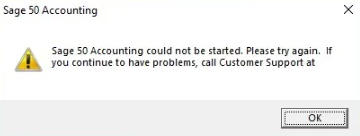
The following message will be shown while user-facing Sage 50 does not open:
Also Find:- How to Resolve Sage 1603 Error During Installation?
Solutions to Resolve Sage 50 Won’t Open Issue
1: End the Compatibility Mode and Peachw.exe processes
- To access compatibility, right-click on the Sage 50 icon and choose Properties.
- Take the check out of the “Run this program as” box.
- If the “Change settings for” option is grayed out, check the box next to it.
- Next, select Apply.
- Using the keyboard shortcut Ctrl + Alt + Delete, choose Start Task Manager.
- Select the Details tab located at the top. (If it’s not there, select the More Details option located at the Processes tab’s bottom.)
- Proceed to the peachw.exe file. Click End Task after selecting Open Process. (If you can’t access this option, click the next button.)
- To be sure the issue has been fixed, reopen your software. If not, move on to the following action.
2: Deactivate the “Run as Administrator” option
- When the Sage 50 icon shows up on the Desktop, right-click on it.
- Next, choose the Compatibility tab by going to Properties.
- Take away the check mark from the “Run this program as Ad” box. Click the “Change options for” option and uncheck it from the secondary window if this option is not available.
- Simply select the Apply Tab and click OK now.
3: Search for DNS Misconfigurations
- Make sure your system’s DNS is set up correctly before making any changes by speaking with your network administrator or an IT expert.
- if your IP address or DNS is fixed.
- To have the DNS and IP server addresses automatically acquired, modify the Internet Protocol version 4 properties on the server.
4: Fix the msvcr100.dll File
Make sure the error notice appears in the Event Viewer logs first. Execute the subsequent actions:
- Check to see if you have Microsoft Visual C++ 2012 and Microsoft Visual C++ 2010 redistributable installed.
- If it isn’t installed already, download it.
- Restart the computer after that, then try to open Sage 50 once more.
- If the problem persists, get rid of Sage 50 Accounting.
- Locate and open the Control Panel.
- Next, search for the installed applications.
- From your computer, uninstall the Microsoft C++ 20XX Redistributable package.
- Now restart the computer.
- The Microsoft Visual C++ 20xXx Redistributable should then be reinstalled.
- Run a Windows repair or install Sage 50 Accounting right now.
5: Verify that the issue is attributed to malware
- Make sure the error notice appears in the Event Viewer logs first. Execute the subsequent actions:
- It is advised that you remove any malicious software if it is causing the issue.
- Take Out Malware
- Look for the Start button on Windows.
- Enter the Control Panel now.
- Choose Features and Program.
- After that, remove the compromised software from your computer.
Also Find:- How to Fix Error Sage 50 Cannot Open Database?
How To Fix Sage 50 Not Launching Issue
There are several ways to fix problems like the Sage 50 Update Failed issue. All you have to do is apply the solution based on the problem that you identify. To complete it as directed, adhere to the procedures.
1: Initiate the repair process and deploy the necessary latest service that may be missing.
- First, if the Sage program is running, close it.
- Then open File Explorer or My Computers.
- Locate the Updates folder using the search field.
- Right-click the most recent Service Release now.
- Select “Run as Administrator” from the menu.
- Now, kindly adhere to the directions that appear on your screen.
- Once the update has finished, launch the Sage program.
- Select the Help menu from within the Sage software.
- Choose About Sage 50 Accounting to verify the update you’ve applied.
2: The Sage 50 software program is currently active in the background
- To access the Task Manager, hold down the Ctrl + Alt+ Delete keys.
- Select the Processes tab in Windows Vista, 7, and Server.
- Go to More Details in Windows 8 or 10, then select the Details tab.
- To open Peachw.exe, click on it.
- Next, select the End task or End process option.
- Shut down the Task Manager now.
- Finally, launch the Sage program without any issues.
3: Corrupted Windows user profile or Citrix user profile
1. For the Damaged Windows Profile of the user
- Do establish a new Windows user profile with all of the Administrator’s local rights.
- Go now to your Windows computer and log in to the new profile.
- Check that the Sage software opens without any issues after that.
2. For the Damaged user in Citrix
- Make a new user profile in the Citrix environment.
- Now launch the software and check to see if any problems arise.
Sage 50 Won’t Open or Work after the Update
Numerous techniques to Sage 50 not opening after update. Here are some efficient and dependable ways to assist you in eliminating the error.
- Stop Sage 50 Software, as it is currently operating in the background on the display.
- Run a repair first, then provide the latest services that are missing.
- It is necessary to remove the Service Release and download it again.
- Update the STATUS.DAT file if it’s missing or is still operating in an older version.
- Recreate the service release on a new copy.
- It is necessary to construct a new data path in the same location as the old one.
- The system’s LOCAL PATH and DATAPATH need to be checked and should be in the same place.
- The application needs to be executed as a manager and compatibility mode needs to be disabled.
Sage 50 Becomes Unresponsive after Installing Sage Update
Here are a few potential fixes for the problem when applying the Sage 2023 update causes Sage 50 to become unresponsive.
1: Start by using compatibility mode to run Sage 50. To accomplish this, right-click on the Sage 50 icon and choose “Properties” from the context menu. Next, choose the “Compatibility” tab and make sure that the “Run this program in compatibility mode for:” checkbox is checked. Click “OK” after choosing the prior Windows version from the drop-down menu.
2: Run Sage 50 as an administrator in step two. The Sage 50 icon can be right-clicked, and the menu item “Run as administrator” can be chosen.
3: To free up file space, purge data files: When Sage 50 opens, choose “Utilities” from the File menu, then “Purge Data Files.”
4: Reinstall Sage 50: After removing Sage 50 from your computer, reinstall the most recent version of the program.
5: Downgrade to Sage 2023: You must downgrade to Sage 50 2023 if you are unable to use the aforementioned steps. Sage 2023 can be fixed by first uninstalling it and then reinstalling it.
Sage 50 Becomes Unresponsive After Installation
If, after an update installation, Sage 50 won’t open, you can attempt a few troubleshooting steps. Verify that your machine meets the minimum requirements specified by the software. Restart your computer after that, then try to open Sage 50 once more. Reinstall the program or get in touch with Sage support if the issue persists.
1: Restart your system
- Turn off and turn on your computer again.
- After the computer restarts, when prompted, install the most recent update.
2: Check the system’s DATAPATH and LOCALDATAPATH
- After the computer restarts, when prompted, install the most recent update.
- Analyze the server’s data path.
- Verify that the locations of LOCALDATAPATH and DATAPATH are the same.
- You will need to remove and reinstall a different application path and data path if the paths do not match exactly.
3: Login as Administrator
- Decide not to start.
- Look through your data path for the Updates folder.
- You can select Run as administrator by right-clicking on the executable file.
- Examine the updates that are installed.
4: The STATUS.DAT file is either missing or using an outdated version
- Select the data pathway.
- Select Rename if there is an earlier date in the STATUS.DAT file.
- The name of the company file has to be modified to STATUS.OLD.
- Repeat steps two and three if STATUS.PTL is present.
- Download STATUS.zip by finding it in the attachments.
- Select Extract All when you right-click STATUS.zip to extract the file to the data directory.
- Verify whether the service release update can be installed.
Sage 50 Does Not Open after Login
Following your login, there may be several reasons why Sage 50 not opening for you. You can attempt the following troubleshooting actions to see if they resolve the issue:
Causes for Sage 50 Not Responding after Login
- Software Mess: Occasionally, Sage 50 may not open after logging in due to a brief software error.
- The issue with authorizations: Sage 50 may not function properly if there are insufficient permissions.
- Program Incompatibilities: Sage 50 may not open if there is a conflict with any of the services or programs installed on your computer.
- Older System Files: Sage 50 and older system files may not work together properly.
- Data corruption: The program may not open if there are corrupted files in the Sage 50 data files.
- Installation issue: Sage 50 may not open due to issues with the original installation or later updates.
Solutions to Fix Sage 50 Won’t Open After Login
- Restart your computer: A straightforward restart frequently fixes a transient software issue. Try launching Sage 50 once more after closing all open programs and restarting your computer.
- As an administrator, run: To make sure you have the necessary permissions to launch Sage 50, right-click on the executable file or Sage 50 icon and choose “Run as administrator.”
- Look for programs that conflict: To check if antivirus or firewall software is interfering with the Sage 50, temporarily disable it. Programs should have Sage 50 added as an exception to their settings if they open after you’ve deactivated them.
- Look for updates to the system: Ensure that the most recent patches and updates are installed on your operating system. Try opening Sage 50 again after installing any available updates and restarting your computer.
- Check data files: Look for files in the directory where the Sage 50 data files are kept with the extensions “.SAJ” or “.SAI.” Transfer or rename the data files to a new location to remove corruption. Next, try opening Sage 50 once more.
- Repair or reinstall Sage 50: If the issue continues, you can attempt to use the Applications (Mac) or Control Panel to repair the Sage 50 installation. Use the original installation DVD to reinstall Sage 50 if that doesn’t work.
- Speak with Sage Experts: For additional help, get in touch with Sage Experts if none of the aforementioned fixes work. They may assist you in fixing the problem by offering precise troubleshooting procedures based on your circumstances.
Sage 50 Accounts Won’t Open
A recent Microsoft Windows Update on your computer may be the cause of why Sage 50 accounts won’t open or hang on a gray screen when you click on their icon.
Solutions to Fix Sage 50 Accounts Don’t Open
- Select Properties by performing a right-tap on the desktop icon of Sage 50 Accounts.
- Select the compatibility tab.
- Check the box labeled “Run this program in compatibility mode” and remove it.
- Take a look at the Adjust settings for all users below if the option is grayed out.
- Press Apply, OK.
- To open Task Manager, press Control + Alt + Delete.
- Go to the top and select the Details tab.
- Note: Click More Details at the bottom of the Processes tab if it isn’t visible.
- Search for “Peachw.exe.”
- Select the approach, then select End Task from the menu. Proceed to the next step if “peachw.exe” is not visible.
- Try starting the software once more.
- Restart your machine and try to open the program again if it still won’t open.
Sage 50 2023 Won’t Open, Not Opening, Gray Screen, Splash Screen, or Hanging up Error
Sage 50 is a reliable accounting software partner for companies, providing extensive functionality and easy-to-use financial administration. But even the most dependable tools can have problems from time to time. If Sage 50 2023 won’t open, shows a gray screen, or just hangs up on you without notice, you may become frustrated.
Solutions to Fix Sage 50 2023 Won’t Open, Not Opening, Gray Screen, Splash Screen, or Hanging up Error
The steps below can be used to troubleshoot the issue of Sage 50 Accounting not opening:
- Select Properties with a right-click on the desktop icon of Sage 50 Accounting.
- Select the compatibility tab.
- The “Run this program in compatibility mode” option should be unchecked.
- Examine the box labeled “Change settings for all users” at the bottom of the option is grayed out.
- After selecting Apply, select OK.
- Start Task Manager can be selected by pressing Control + Alt + Delete.
- Go to the top and select the Details tab. Click More Details at the bottom of the Processes tab if it’s not visible.
- Look for “peachw.exe” in the processes list.
- Select the process, then select End Task from the bottom menu. Proceed to the following step if “peachw.exe” is not visible.
- Select the process, then select End Task from the bottom menu. Proceed to the following step if “peachw.exe” is not visible.
- Try starting the program once more.
- Restart your PC and attempt to open the program if it still won’t open.
Sage 50 Won’t Open after Restoring a Backup
Following the restoration of the backup, Sage 50 ceased its operation. Such issues can arise in the course of backup restoration, demanding prompt resolution due to potential file damage within the company’s folder. The instructions provided below aim to assist you in addressing the “Sage 50 has stopped working” predicament after completing the backup restoration process.
Solutions to Fix Sage 50 Won’t Open after Restoring a Backup
1: Clean up the business folder.
- If at all possible, start by creating a backup for your business. If it isn’t feasible, copy and paste the corporate folder to create a replica folder.
- After the business has been shut down, confirm that no one is still signed into Sage 50.
- The following files should be deleted from the business folder.
- Userpref.dat Alert.dat Alarm.dat Attchmnt.dat Atmntbdl.dat
- Cosess.dat Connco.dat
- Every kind of RPT file
- Every PTR kind of file
- Every PTL-type file
- Every MKD kind of file
- Every file type of LCK
- Every form of DDF file
- Every kind of DATtptl file
- All files in DATtemo tyes
- Try to restore it now by opening Sage 50; if not, move on to the next step.
2: Restore a backup
- Examine the company’s backup before receiving the message.
- Restore the backup to a different business.
3: Make a new local data path temporarily.
- Create a new local path using the Sage 50 database repair tool.
- At this point, return the data path to its original state.
- Check now to see if there are any errors when restoring the backup.
Conclusion
In conclusion, the Sage 50 won’t open issues that can be resolved through systematic troubleshooting. By following these steps, you increase your chances of identifying and addressing the root cause, allowing you to get back to managing your finances efficiently with Sage 50. If you still have any concerns, feel free to contact us at the toll-free number: 1-877-400-0650.
Frequently Asked Questions
Make sure that the minimal requirements of Sage 50 are met by your system. Sage 50 may not open due to outdated software or incompatible hardware. To find out the precise requirements, consult the official Sage 50 literature.
From the context menu, choose “Run as Administrator” after performing a right-click on the Sage 50 icon. This could fix access-related issues by giving the app the required rights.
Yes, the program may not open if Sage 50 processes are running in the background. Before attempting to reopen Sage 50, use the Task Manager to terminate any running processes.
For the latest version of Sage 50, check for updates within the Sage 50 program or go to the official Sage website. It’s important to keep your program updated because new versions frequently contain bug patches that can fix opening problems.
To check if your firewall or antivirus software is preventing Sage 50, temporarily disable it. If the program launches successfully, change your security preferences to allow Sage 50 access.
1. Select the program with a right-click.
2. Select Properties
3. Select the compatibility tab.
4. Select the option to “Run this program in compatibility mode” by checking the box.
5. Select Windows 10 as the operating system.
6. Select “Apply”
7. Click “OK.”
Fixing is the ideal course of action. Open the Sage 50 2018 application in compatibility mode if it keeps crashing after updating to Windows 10. To carry out this, adhere to the guidelines below: Select the Sage 50 2018 icon with a right-click on the desktop. Press the Properties button. Choose the compatibility tab. Then select Compatibility Mode by clicking the box. Select Windows 10 from the selection that drops down. Select OK. Open the admin mode of Sage 50 2018 Verify if the High DPI scales are receiving high attention. Please make the alterations listed above on the server and all other Windows 10 computers.
The steps to follow are as follows: Start Windows 10, then type “Notepad” into the search bar. Notepad can be selected with a right-click. Decide Execute in Administrator Mode Open a browser and navigate to c:\Windows\System32\Drivers\etc\ Track down the host file. Use a notepad to open it. Make the necessary changes now and save the adjustments.
The steps to disable Sage 50 and the UAC are as follows. Issues with Windows 10– Select the Start menu by clicking on it. To access the Control panel, click the search bar. Select the User Accounts section now. Select the link labeled “Change User Account Control settings.” Your screen will display a toggling bar. Here, drag the button to the bottom, close to “Never notify.” Click OK now to proceed. To make the changes go into effect, click Yes.
To get started, simultaneously press the Windows and R keys.
1. Proceed to enter % temp percent in the search box.
2. Click the OK button thereafter. On the page that shows up, select every file and folder.
3. Delete can be chosen by doing a right-click.
1. Run as Administrator: Right-click Sage 50 icon > Run as administrator.
2. Different User Account: Log in with another account.
3. Delete User Preferences: Delete contents in C:\Users[Your Username]\AppData\Local\Sage\Sage50_XXXX.
4. Rename Company File: Rename the .SAJ folder and .SAI file.
5. Disable Third-Party Software: Disable antivirus or backup software.
6. Check Log Files: Review logs in C:\Users[Your Username]\AppData\Local\Sage\Sage50_XXXX\Logs.
7. Repair Installation: Control Panel > Programs > Sage 50 > Repair.
8. Update Sage 50: Install the latest updates.
9. Clean Boot: Disable all startup items and restart.
10. Reinstall Sage 50: Uninstall and reinstall from original media or Sage website.
1. Run as Administrator: Right-click Sage 50 icon > Run as administrator.
2. Disable Antivirus/Firewall: Temporarily disable them.
3. Update Sage 50: Install latest updates from the Sage website.
4. Windows Updates: Ensure Windows 10 is up-to-date.
5. Repair Installation: Control Panel > Programs > Sage 50 > Repair.
6. Clear Temporary Files: Use Disk Cleanup.
7. Reinstall .NET Framework: Ensure it’s properly installed.
8. Compatibility Mode: Right-click Sage 50 icon > Properties > Compatibility tab > Run in compatibility mode.
9. Check Data Path: Verify Sage 50 data path configuration.